Video 6 of 7 · 6:16 · Watch in order
Video 6: Resource Management in AutoCAD Schedules
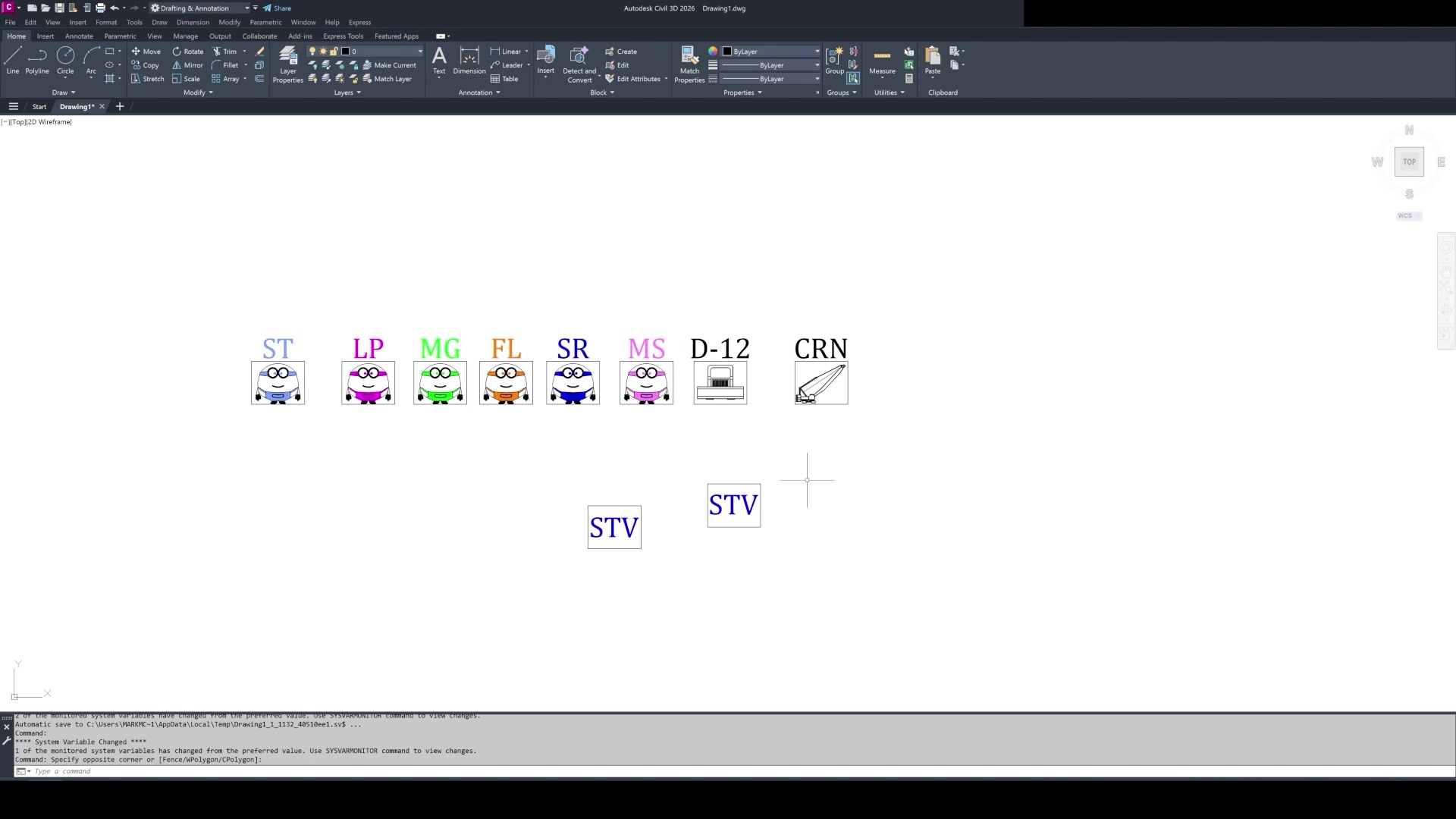
CPMCAD automatically positions resource block symbols alongside each Gantt bar based on your Excel assignments, so a project meeting can focus on the work instead of hunting for who owns what.
How to place and customize resource symbols on an AutoCAD schedule
- Define resources on the Resources sheet. Add every person, crew, and piece of equipment with a Type, Max Per Day availability, Hours Per Week, and the initials CPMCAD will display.
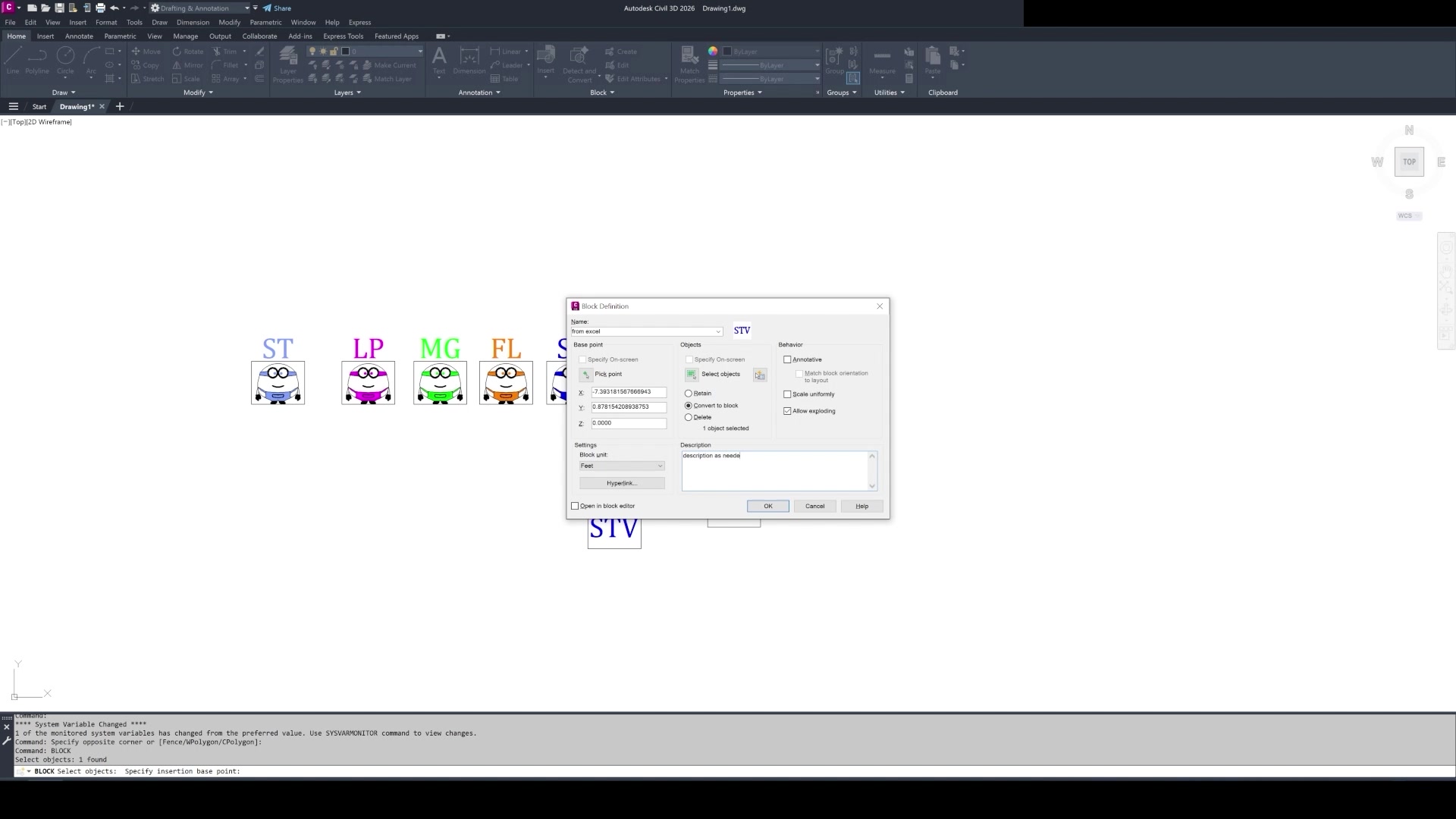
- Choose a symbol and block name for each resource. This is the customization step: pick or design the AutoCAD block that represents that resource on the drawing, for example a labeled circle with initials for a person, or a distinct symbol for a crew or piece of equipment.
- Assign resources to activities in the Initial Schedule sheet. Use the resource name followed by quantity in parentheses, for example Mark.G(1),Sarah.T(1), to assign one unit each of two people to a single activity.
- Generate the schedule and review resource placement. When CPMCAD draws the Gantt chart, it positions each activity's assigned resource blocks alongside the bar automatically, based on the Excel assignments.
- Adjust symbols to match your standards. Because the blocks are native AutoCAD entities, you can restyle colors, resize, or swap symbols to match your firm's drafting standards without breaking the link back to the schedule data.
- Use resource visibility to run better meetings. With resource blocks on the Gantt chart, every team member can instantly see the tasks they own, which keeps project meetings focused on responsibilities and expectations instead of who is doing what.
What you will see in the video
Video overview (based on the CPMCAD feature description)
CPMCAD automatically positions resource block symbols alongside each Gantt bar based on your Excel assignments. Every team member can instantly see the tasks they own, making project meetings more focused and conversations about responsibilities and expectations more productive.
Resources are defined on the Resources sheet with a name, type, maximum quantity per day, hours per week, initials, and the symbol or block name CPMCAD uses to represent that resource in the drawing. Assignments happen on the Initial Schedule sheet, where each activity lists the resources it needs by name and quantity.
Because the resource blocks are native AutoCAD entities, they can be restyled, recolored, or resized to match your firm's drafting standards without losing the link back to the underlying schedule data.
Note: no production script exists yet for this video, since it was added to the channel after the original five part series. This overview is written from the resource block placement feature description on cpmcad.com. Replace it with an accurate transcript once the video is finalized.
Try it on your own schedule
CPMCAD offers a full-featured 30-day free trial, or $250/year for unlimited use and clean, watermark-free output.