Video 4 of 7 · 5:10 · Watch in order
Video 4: Build a Construction Schedule in AutoCAD
Every CPMCAD construction schedule starts in Excel. This tutorial walks through the template, column by column, so you can structure a real project and drive it straight into AutoCAD.
How to build a construction schedule in AutoCAD from Excel
- Set up your Resources sheet. List every person, crew, piece of equipment, and agency involved in the project, along with type, maximum quantity per day, hours per week, and the initials or block symbol CPMCAD should use in the drawing.
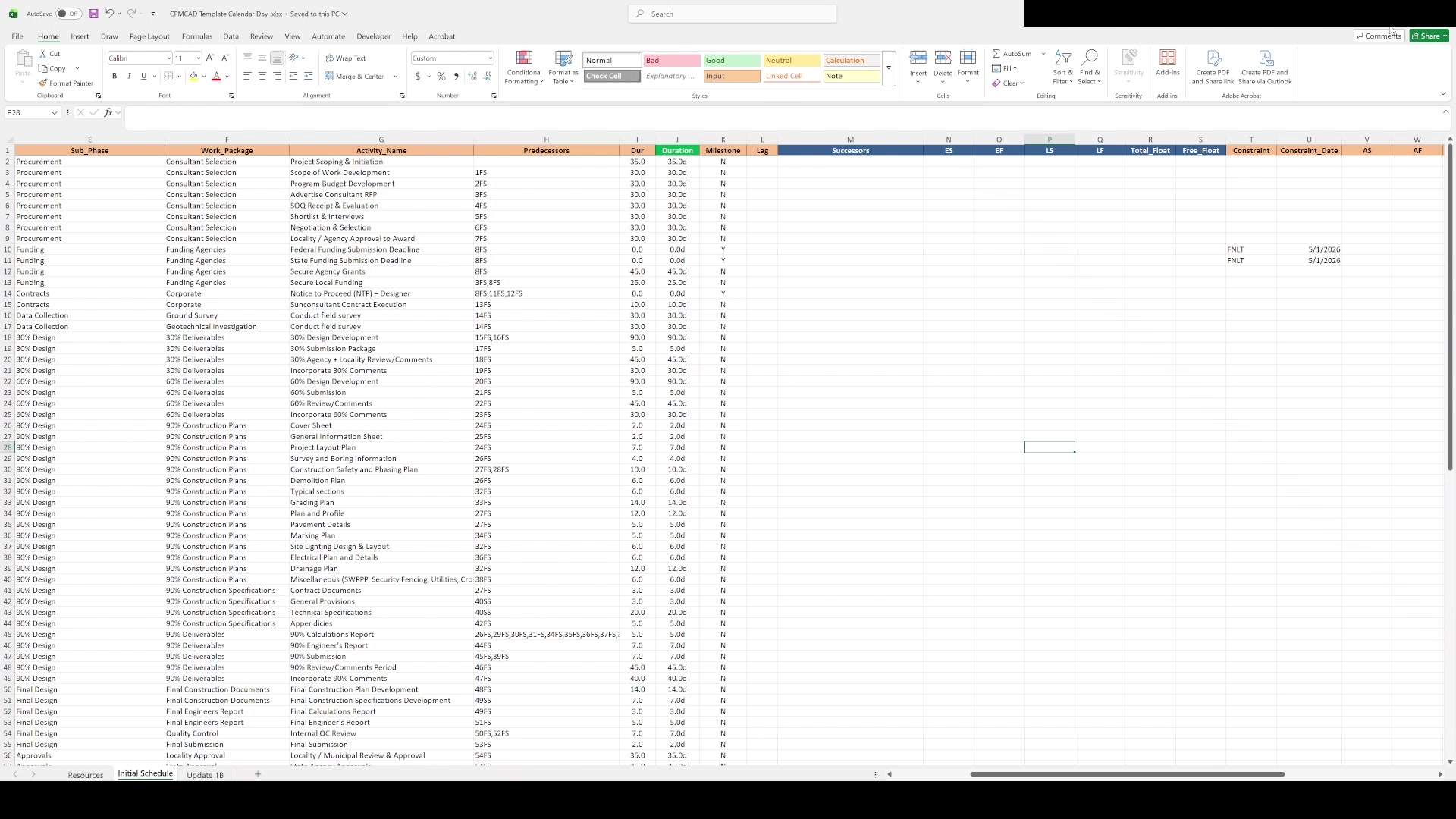
- Define your work breakdown structure. On the Initial Schedule sheet, use the Phase, Sub Phase, and Work Package columns to organize activities, for example Pre-Design, Design, Permitting, Bid and Award, Grants, and Construction. This structure drives phase bar grouping and color coding later.
- List activities with durations and names. Add a row per activity with a clear, concise Activity Name, since that text becomes the label on your Gantt chart.
- Build the network logic with predecessors. Reference the row number of each predecessor along with its relationship type and any lag, for example 61SS+5 for a Start to Start relationship with a five day lag. Multiple predecessors go in one cell, comma separated with no spaces.
- Flag milestones and add constraints. Mark zero duration activities as milestones, and apply constraint types like Finish No Later Than to any activity tied to an external deadline, such as a grant funding submission date.
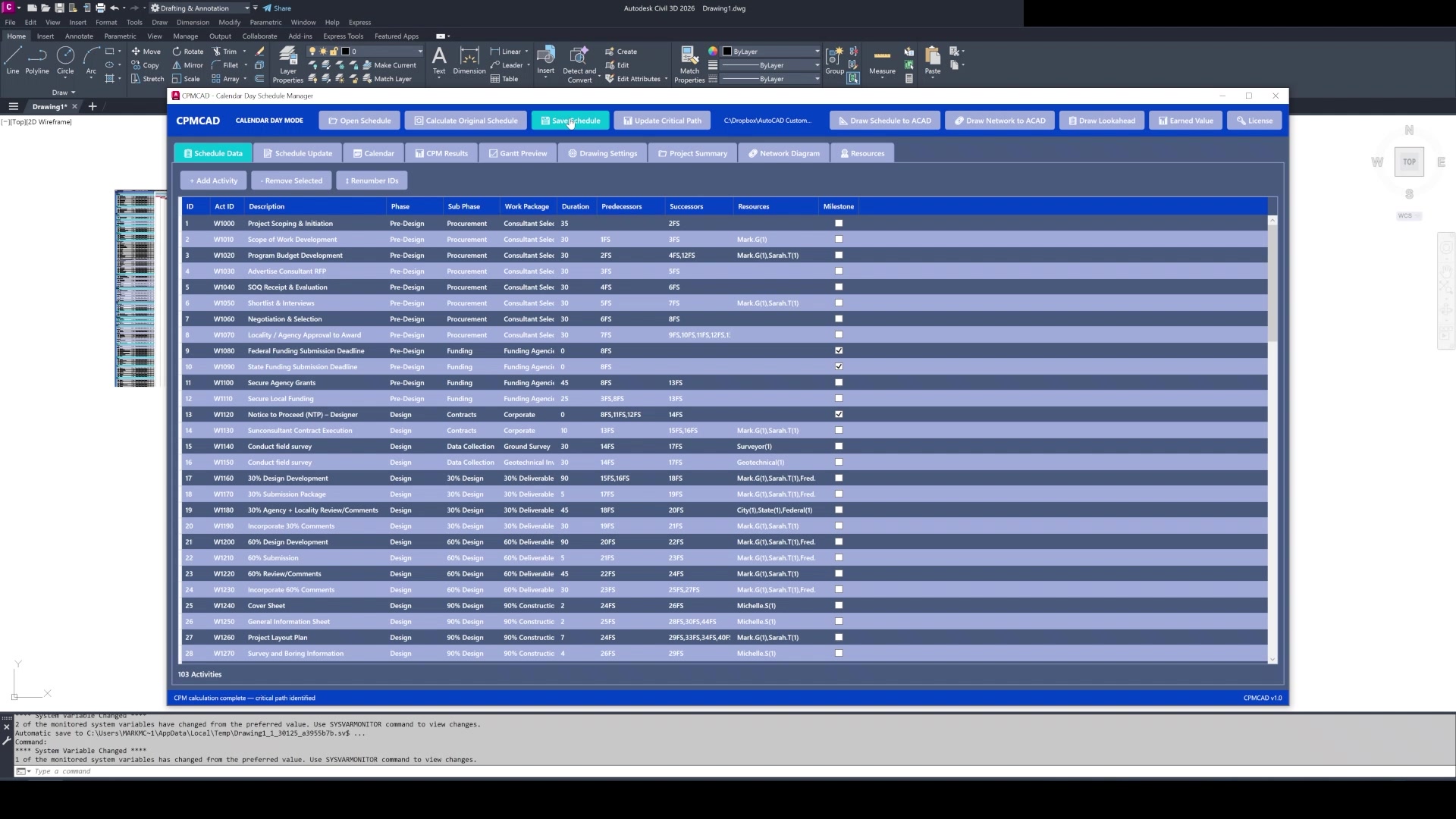
- Assign resources and costs, then load the file into CPMCAD. Reference resources from the Resources sheet by name and quantity, add budget figures if needed, then switch to AutoCAD and load the workbook to calculate and draw your construction schedule.
What you will see in the video
Video overview (from the production script)
CPMCAD uses Excel as its data layer, no proprietary database and no locked file format, just a structured workbook you can open, edit, share, and version control.
The workbook has two sheets. Resources defines every person, crew, equipment item, and agency that may be assigned to activities, with columns for name, type, maximum quantity per day, hours per week, initials, and the CAD block used to represent that resource on the schedule graphics.
The Initial Schedule sheet is where the project lives. Identification columns cover a sequential row number, an activity number, an activity ID, and a three level work breakdown structure of Phase, Sub Phase, and Work Package, which drives how CPMCAD groups activities for phase bar generation and color coding.
Scheduling logic comes from the Predecessors column, where each reference is a row number plus a relationship type and optional lag, comma separated when an activity has more than one predecessor. Duration, a milestone flag, and lag values round out the input side.
After CPMCAD runs its calculations, it writes Successors, Early Start, Early Finish, Late Start, Late Finish, Total Float, and Free Float back into the same columns, so the spreadsheet becomes both your input source and your calculated schedule record. Constraint type and date, actual start and finish, resource assignments, and cost columns round out the template for a complete construction schedule.
Note: this summary is adapted from the production script for this video. Column layout in the current template may differ slightly.
Try it on your own schedule
CPMCAD offers a full-featured 30-day free trial, or $250/year for unlimited use and clean, watermark-free output.